A new way to get paid—powered by the device you already use every day
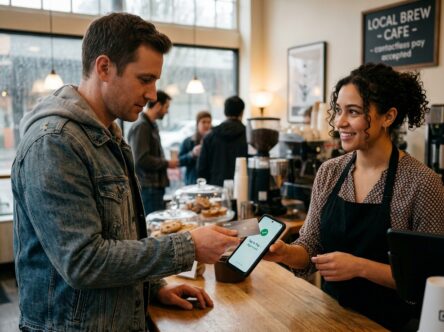
With Tap to Pay you’re always ready to serve your customers. Your mobile device becomes your all-in-one payment tool—no terminals to carry, no add-ons to manage, and no extra setup getting in the way*. Even better, Tap to Pay gives you flexible ways to accept payments so you can meet customers wherever they are and however they prefer to pay.
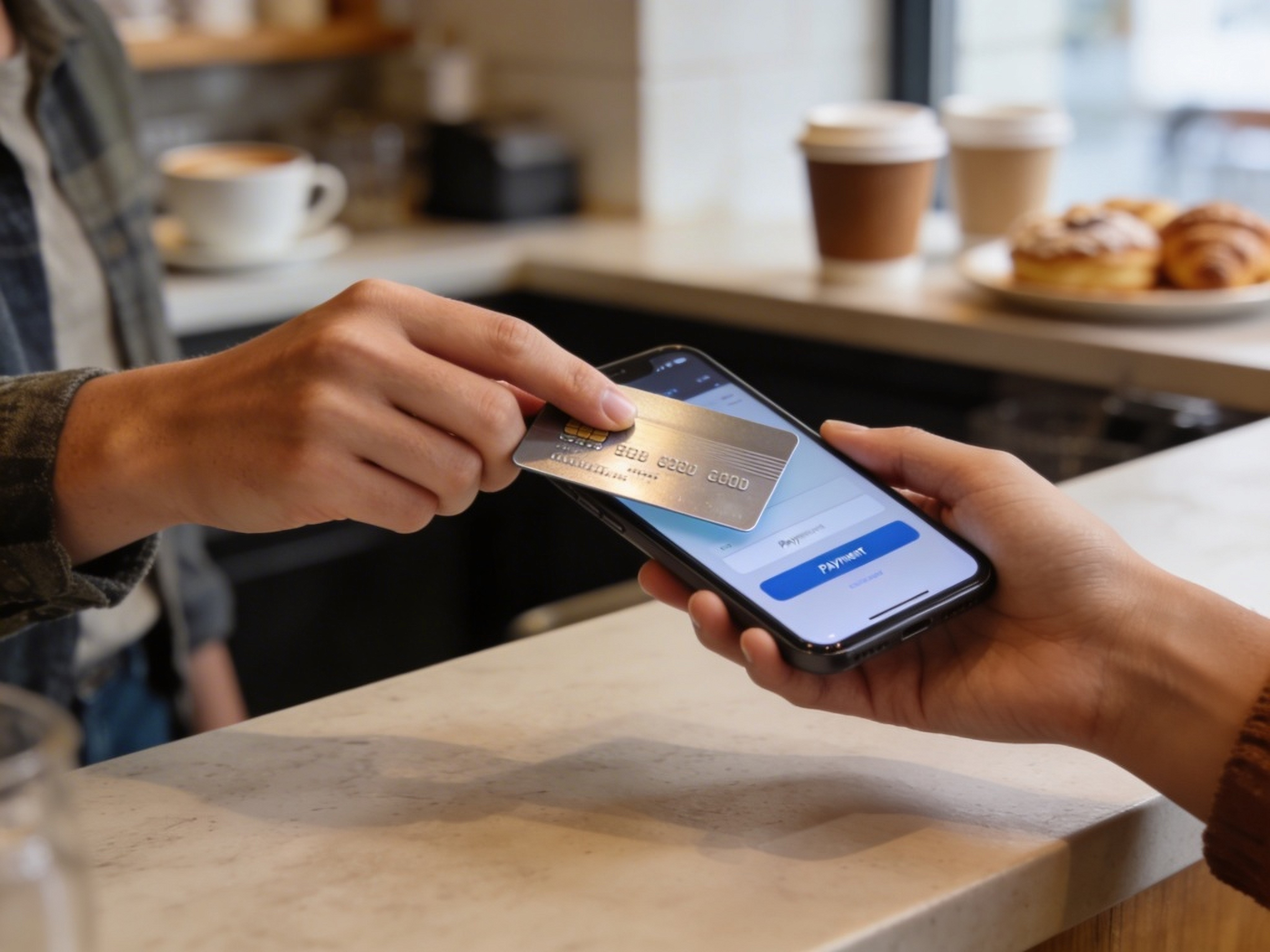
- Tap to Pay: Take in-person card and mobile wallet payments with a simple tap on a compatible device.
- Payment Links: Send secure single-use or multi-use links customers can open from anywhere—even social channels.
- QR Codes: Share scannable codes for quick, seamless payments in person or online.
*Standard card processing fees apply.
Get started with Tap to Pay
Business customers can enroll for this convenient service quickly within the First Resource Bank mobile banking app.
- Within the app click Ready to Select Card Payments followed by Enroll Now
- Review the disclosures provided by MOOV and select Get Started
- Enter your business details.
- After reviewing the pricing agreement, select the account you’d like your daily settlements to be deposited into.
- Click Continue and Save.
- After your application is approved, you’ll receive a unique merchant identifier — and you’re all set to start accepting payments with Tap to Pay.
Approximately 65-70% of businesses will receive instant approval and can start taking payments immediately.
Accept payments in One of Three Ways
Once you’re enrolled, your mobile banking app turns your smartphone into a fully contactless point-of-sale system, letting you accept debit cards, credit cards, Apple Pay, Google Pay, and more with a simple tap.
Tap to Pay
To accept an in-person, card-present payment:
- Open Tap to Pay by clicking the Accept Payment tile within the First Resource Bank mobile banking app.
- Enter the amount, add an optional description, and tap Continue.
- Choose Tap to Pay on iPhone or Tap to Pay on Android to begin the transaction.
- Have your customer tap their physical card or mobile wallet against your compatible smartphone.
- When the payment is successfully processed, you’ll see a Payment Complete confirmation. Select Email Receipt if your customer would like a digital receipt.
Payment Link
To accept an online or remote payment:
- Open Tap to Pay by clicking the Accept Payment tile within the First Resource Bank mobile banking app.
- Enter the payment amount, include an optional description, and tap Continue.
- Choose Payment Link to generate a secure link your customer can use to pay online.
- Share the link with your customer—via text, email, or any messaging channel—so they can complete the payment from anywhere.
QR Code
To accept payment using a QR code:
- Open Tap to Pay by clicking the Accept Payment tile within the First Resource Bank mobile banking app.
- Enter the payment amount, add an optional description, and tap Continue.
- Select QR Code to instantly generate a scannable code your customer can use to pay.
- Have your customer scan the QR code—whether displayed in person or shared online—to complete their payment in seconds.
Effortless Payments, Effortless Bookkeeping
With Tap to Pay, every payment you collect syncs automatically to accounting tools like QuickBooks or Xero — so you can spend less time sorting invoices and more time doing the work you love. No spreadsheets, no manual entry, no late-night bookkeeping sessions. Just clean, accurate records handled for you in the background.
Start Tapping Into Better Payments
Ready to upgrade your checkout? You can be up and running in minutes — no installation, no learning curve.
Start Now – If you’re not already using our mobile app, download it today!